
Just about everyone has a Google account these days. Millions of people use Google Calendar because it’s free, easy to use, and beneficial in their everyday lives. But what if you want to export Google Calendar event data? It’s very much possible! Let’s deep dive into the process.
An Overview of Google Calendar
Google Calendar is a popular calendar and reminder app from the search engine giant. It is available as both a Web app and a downloadable mobile app.
Thanks to Google Calendar, loads of people feel they’re more organized, disciplined, and productive than ever before. It lets you organize and schedule your everyday priority tasks and appointments into a unified interface.
As part of the Google ecosystem, it offers integration with Google’s flagship product, Gmail. You can add important events (such as your friend’s birthday party) from your emails with a single click. If you’re working in a team within an organization, you can share your calendar events and upcoming events with your colleagues.
Export Google Calendar Event to ICS
Google Calendar provides a native option to export Google Calendar event to the ICS file format. An ICS file contains your events, meetings, and tasks that can be shared between different calendar apps (such as Google Calendar, Apple Calendar, and Microsoft Outlook).
Method 1: Export Calendar Events from Calendar Settings
1. Open Google Calendar.
2. Click on the “Main Menu” icon in the upper left corner.
3. Expand “My Calendars“.
4. Do you see any active calendars? Click on the three dots icon next to your calendar’s name.
5. Select “Settings and Sharing“.
6. It opens your Calendar Settings page.
7. Click on “Export Calendar“.
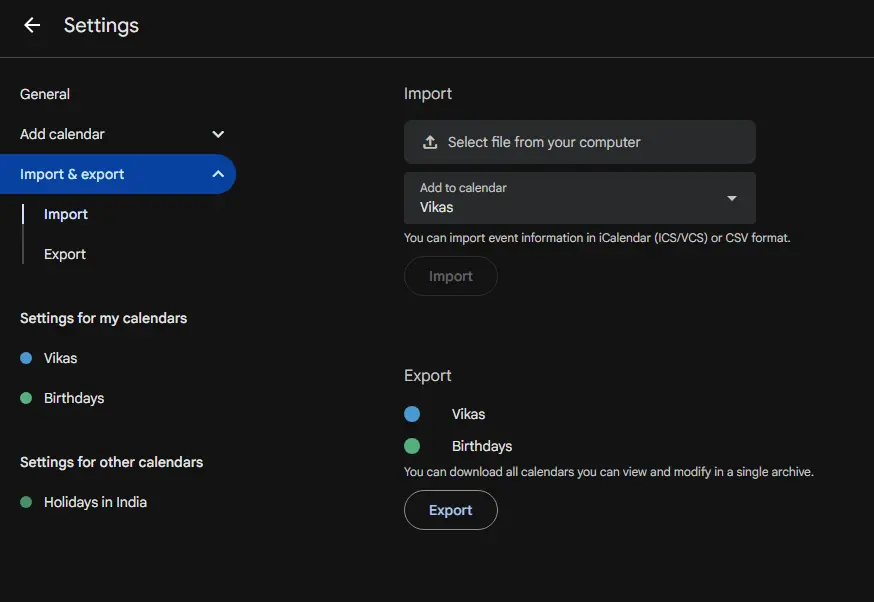
8. Google will now export calendar events and save them on your PC into a compressed Zip file. You can extract its content to get the actual .ICS file.
Method 2: Download Google Calendar Events Using the Download Your Data Page
1. Open your browser and sign in to your Gmail account.
2. Click on your Profile Picture in the upper right corner.
3. Select “Manage your Google Account“.
4. Click on the “Data & Privacy” tab.
5. Scroll down and look for the “Download, delete or make a plan for your data” section.
6. Click “Download your data“.
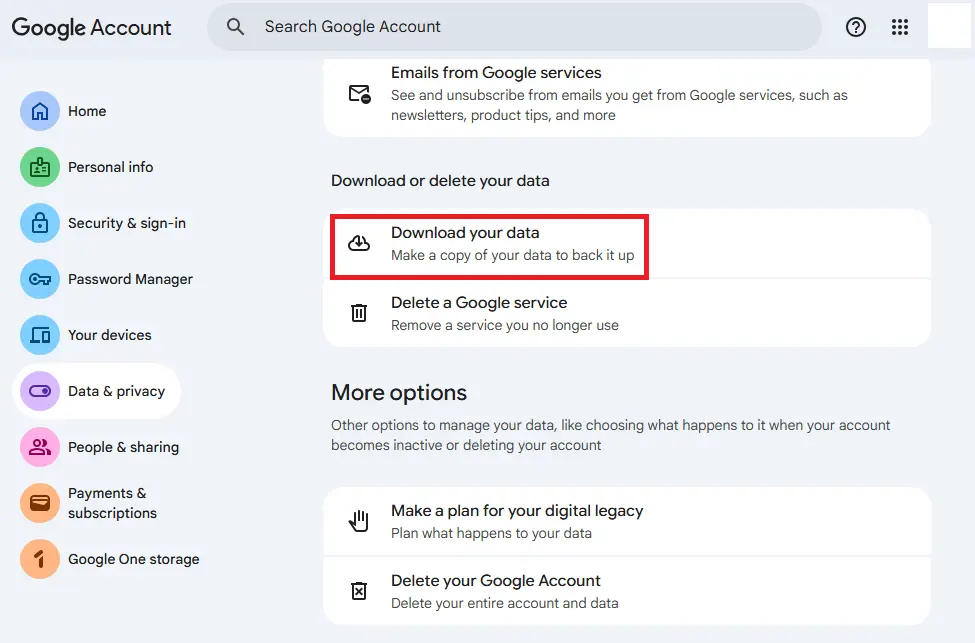
7. Google will show a list of all the Google products. Since we want to only export Google Calendar event, click on “Deselect All“.
8. Now, select “Google Calendar“.
9. Click on “Next Step“.
10. Select your desired File Type and Size. As an example, we’ll select “.zip” as the compression format, and “1 GB” as the maximum limit for splitting your compressed files.
11. Click on “Create Export“.
12. Google may take some time to create an archive of your data. Once it is created, you’ll receive an email containing a link to download Google Calendar events inside a Zip file.
Export Calendar Events to Excel
Google Calendar doesn’t provide a native way to directly export calendar events and reminders to Excel Spreadsheet format. But don’t be disappointed. You can simply import your existing ICS file into Excel and follow a simple wizard.
1. Refer to the above section “Export Google Calendar to ICS” to download reminders and events to your PC.
2. Extract the contents of the downloaded zip file to get the .ICS file for importing into Excel.
3. Open Microsoft Office Excel.
4. Click on File, select Open.
5. Click on Browse.
6. In the File Type Filters drop-down box, select All Files (*.*).
7. Select your downloaded ICS file, and then click on Open.
8. A new wizard will appear on your screen. Select the Delimited option, and then click on Next.
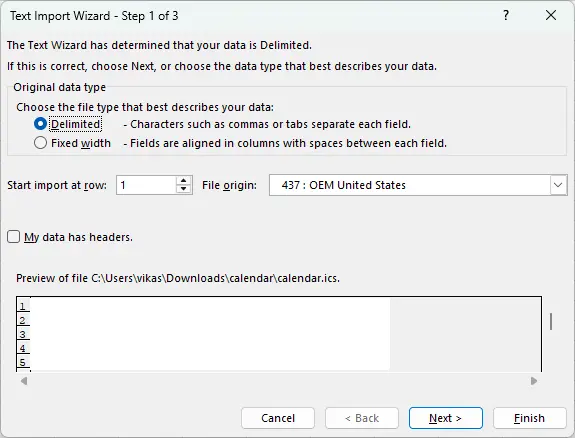
9. Select the Tab box, and then follow the instructions on your screen.
10. Once your ICS file is successfully imported, save it as a normal Excel Spreadsheet. To do so, click on File > Save As > OneDrive. Select the Save as type to Excel Workbook (*.xlsx). Click on Save.
Wrapping Up
Exporting Google Calendar events as an ICS file facilitates migration to another calendar app. Similarly, exporting them to an Excel spreadsheet provides a more consolidated offline view and serves as an offline backup, just in case you lose access to your Google account.
Frequently Asked Questions (FAQs)
Is there a way to download Google Calendar events?
Yes, you can download Google Calendar events using the app’s Settings and Sharing page, or using Google’s Download Your Data service.
Can you export calendar events?
Yes, you can export calendar events to an ICS (Internet Calendaring and Scheduling) file. You can import this file into your desired calendar app to move your data.
Can you extract data from Google Calendar to Excel?
There is no direct way. You will need to first download Google reminders as an ICS file and then import this file into Microsoft Office Excel using the Text Import Wizard.
Leave a Reply
You must be logged in to post a comment.