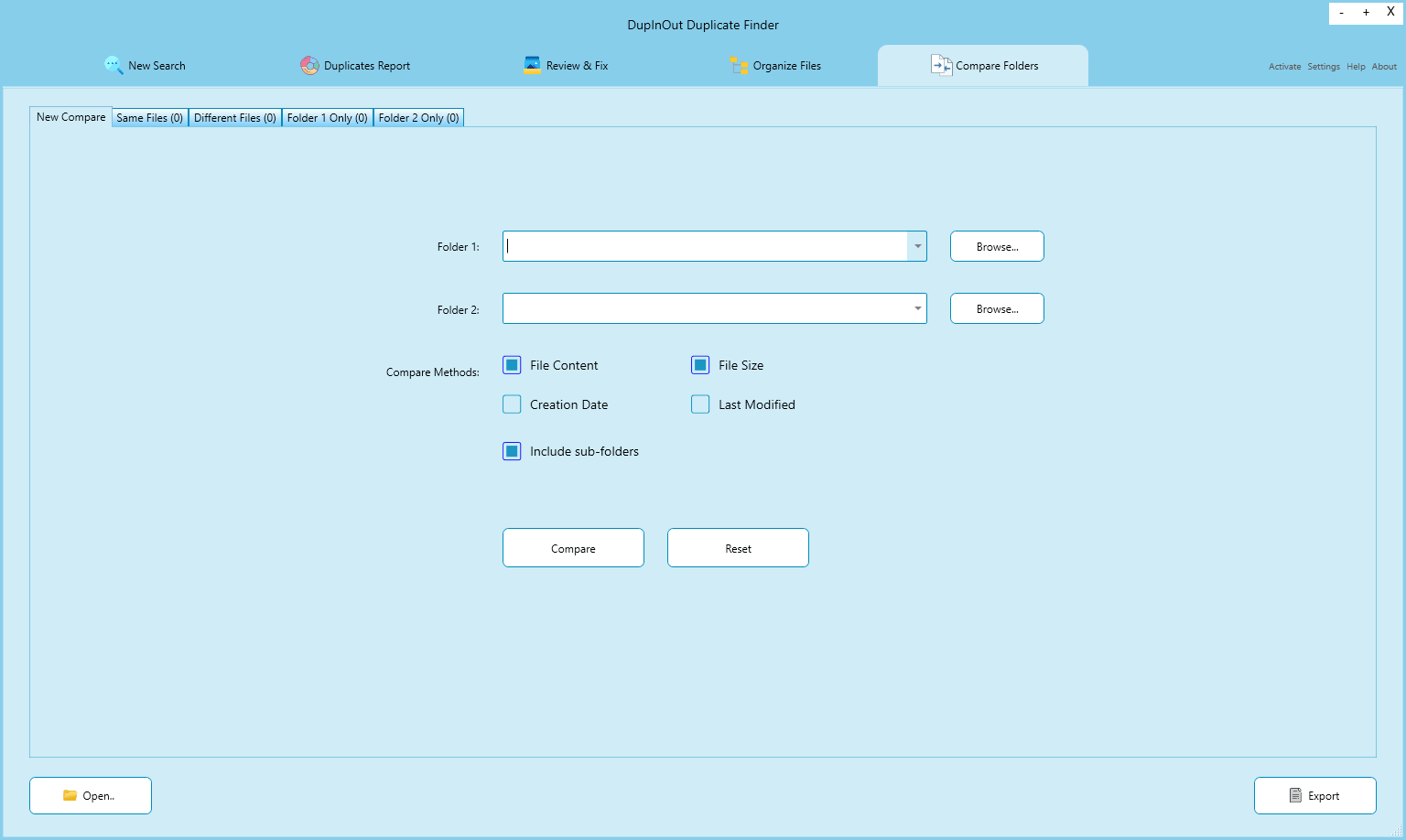
Sometimes, you may want to compare the contents of two folders to see what’s changed. Maybe you copied some files from one folder to another, and you want to confirm whether all the files have been successfully copied. Or maybe you just want to verify the integrity of the simple backups you stored in another folder. A directory compare tool can come to your rescue.
How to Compare Folders Using Directory Compare Tool?
DupInOut Duplicate Finder is one of the best file and folder compare tools that let you compare source and target folders and see what’s changed. It is fully customizable — meaning, you can specify your comparison method for optimum results. Now, let’s deep dive into the directory compare process.
Step 1: Define Source & Target Folders
Download DupInOut Duplicate Finder and install it.
Click on the Compare Folders tab.
Specify your source folder in the Folder 1 and target folder in the Folder 2 text box.
Source Folder is the folder that contains your files. Target Folder is the folder that contains the files you want to compare with.
Let’s take a simple example — You copied files from “D:\Original Files” to “E:\Copied Files”. To check whether all the files have been successfully copied, specify “D:\Original Files” as your Source Folder, and “E:\Copied Files” as your Target Folder. If some files were not copied, they will appear in the “Folder 1 Only” tab (i.e. Source Folder only). If any files were corrupted during the copying process due to a technical glitch (such as a system crash), such files will appear under the “Different Files” tab. All the successfully copied files should appear under the “Same Files” tab.

Step 2: Choose File Directory Compare Method
By default, the best file folder compare tool for Windows uses the File Content + File Size method to compare the contents of your Source & Target folders. However, you can change this behavior. You can choose another file directory compare method, if you wish to do so.
For example — You can select one or a combination of file directory compare methods from file content, file size, creation date, and last modified date.
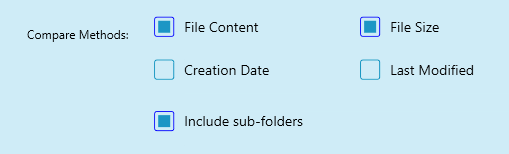
Check Include sub-folders if you want to compare the subfolders within the Source & Target folders.
Finally, click on the Compare Folders button to start the folder compare process.
Different File Directory Compare Methods Explained
Here are the file directory compare methods in the file folder compare tool. Keep in mind, you can select one or a combination of different folder compare methods. It’s up to you!
1. File Content
File Content is a strong and accurate method of comparing your files. When selected, DupInOut Duplicate Finder will generate and compare the hashes of each file in the source and target directory.
A hash is a fixed-size string that represents the content of data. It is usually non-reversible, which means you cannot get back the original data from a simple file hash. Files with duplicate hash value are flagged as Same Files, whereas those with unique hashes are considered Different Files or Additional Files.
Keep in mind, if you have large files in the source and target folders, the program may take some time to analyze them. However, we recommend this method due to it’s higher accuracy level.
2. File Size
Comparing file size is quick. The folder compare tool simply checks the sizes of the files inside the source and target folders, and reports files with the same sizes as Same Files and those with different sizes as Different Files or Additional Files. File Size is a less dependable metric of comparison compared to File Content.
3. Date Created
The file creation date is a metric that takes the chronological order of your files for comparison. It flags the same files, Different Files and Additional Files based on the date and time when they were created. Files with the same creation date-time are flagged as Same Files, and those with unique date-time are flagged as Different Files or Additional Files. When employed in isolation, it can be a less dependable metric of comparison. This is because the file date-time can be altered using third-party tools too. Also, file copying and file restoring activities often change the original timestamps, affecting your results.
4. Date Modified
Much like the file creation date metric, the file modification date metric takes the chronological order of your files for comparison. It reports the Same Files and Different Files based on when they were last modified (files could have been modified by the user, their operating system or an installed software). Again, this is a less dependable metric of comparison when employed in isolation.
File Folder Compare Tool is Not a Duplicate Files Finder Software
The folder compare tool is not a duplicate files finder software. It works differently, and is designed for a different purpose.
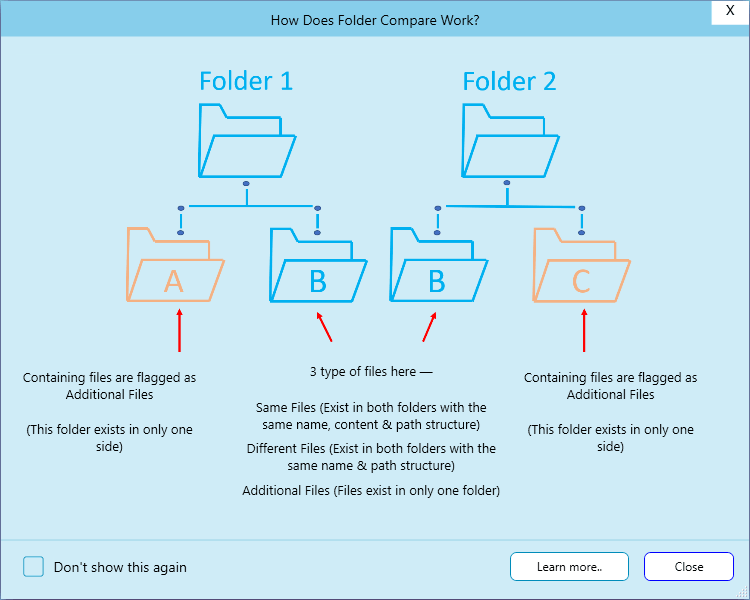
A duplicate files finder searches for identical files across any folder, and sub-folder, regardless of its name and path structure. A folder compare tool works in a hierarchical (folder-to-folder) basis. It takes your directory structure into consideration while flagging your files as same files, different files, and additional files.
Here’s a simple illustration:
Benefits of Directory Compare Tool
Why use a file folder compare tool? Here are some major benefits:
1. Comprehensive Folder Analysis
The folder compare tool compares source and target folder side-by-side, providing a complete overview of their contents.
2. Validate Copied Files
Once you have copied your files to another folder, you can run a directory compare to verify all the files have been successfully copied.
3. Validate Backed-up Files
The folder comparison tool can also be used to validate the integrity of the contents of your simple file backups.
4. Export Results to a .CSV
After reviewing your folders, you can export the results to a Comma-separated Values (.CSV) file for your future reference.
Conclusion
A file folder compare tool is an incredibly helpful software to verify the integrity of your files. It provides a side-by-side comparison of the source and target folders, allowing you to see what’s changed and export the results to a .CSV file.
Frequently Asked Questions (FAQs)
How to do folder comparison?
Top file and folder compare tools such as DupInOut Duplicate Finder can be used for directory compare. Specify the source and target folder, choose your desired folder comparison method, and hit the Compare Folders button. That’s it!
Which directory compare method should I select?
We recommend selecting the File Content + File Size method for higher accuracy. If you’re looking for quick results, choose File Size, Creation Date, and/ or Last Modified methods.
Leave a Reply
You must be logged in to post a comment.