A duplicate music finder tool, such as DupInOut Duplicate Finder, analyses music tags to find duplicate songs quickly and easily. It offers smart algorithms, one-click selection options, and advanced scan filters. Other methods include sorting music files by their names in File Explorer (simple & free) and using the “Show duplicate items” option in iTunes.
Duplicate music files can take up considerable storage space and make it hard to manage your vast music collection. If there are too many, your tracks will keep repeating. Let’s take a deep dive into how a duplicate music finder can help you find duplicate songs quickly and securely.
Using a Duplicate Music Finder
DupInOut Duplicate Finder is a fast, lightweight, and secure application that helps you find duplicate songs on your computer and declutter your music library.
This duplicate music files finder offers powerful algorithms, custom scan options, and bulk file selection tools that help you keep your music library clean, organized, and compact. It provides both metadata and file content comparison options, giving you full control over how you want to compare audio files.
Furthermore, it can detect duplicate songs even if they are named differently or stored in different formats. If you’re worried about accidentally deleting your favorite songs, you can choose other safe options, such as moving duplicate music to another folder, renaming it by adding a prefix/suffix, or moving it to the Recycle Bin.
Step 1: Add Your Music Folders
Download DupInOut Duplicate Finder and install it on your PC.
Click on the Add button and select the folder(s) you want to scan for duplicate songs. For example: C:\Users\<User_Name>\Music
Step 2: Start Scan
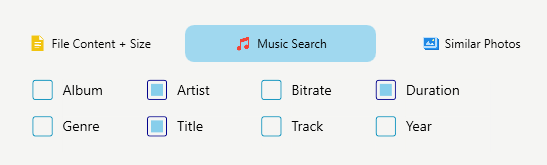
Set the scan mode to Music Search and then click on the Start Search button.
Step 3: Review Duplicate Files
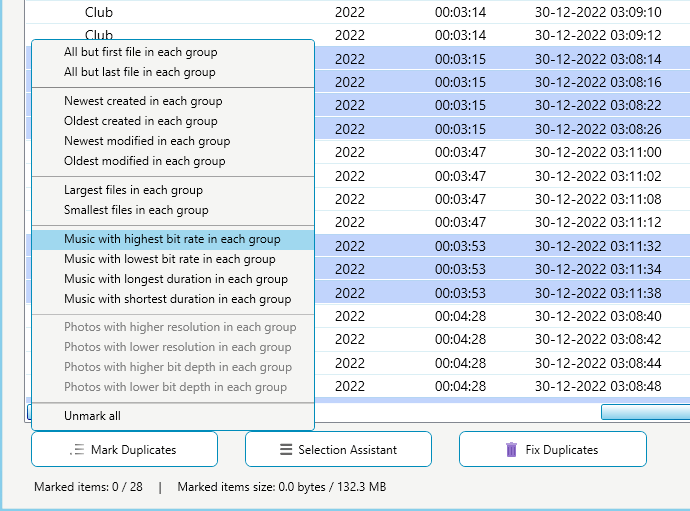
Once the scan concludes, use the Select Duplicates button to automatically mark/ unmark hundreds of duplicate MP3 and all other songs using a pattern of your choice.
Mark the files you want to fix. Unmark the files you want to keep.
Step 4: Fix Duplicate Music
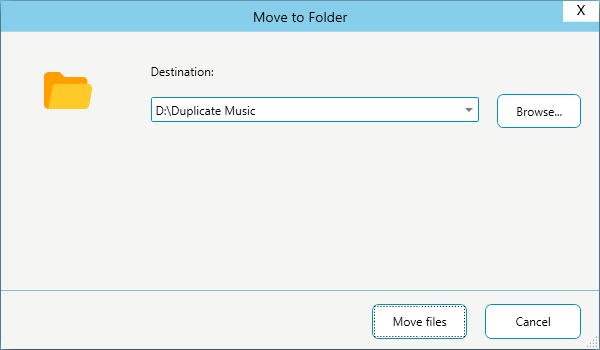
Click on the Fix Duplicates button and choose an action of your choice.
Other Ways to Find Duplicate Music
If you don’t wish to download a specialized duplicate songs finder, there are other ways too.
1. The File Explorer Method
You can manually find duplicate music without downloading any third-party software. Open File Explorer, go to the folder where you want to search for duplicate music, and then sort it in ascending order. The steps are as follows:
- Open File Explorer.
- Go to the Music folder (located on the left panel).
- Right-click on an empty area.
- Select Sort > Name.
- Your files will be sorted in alphabetical order.
- Look for similar file naming patterns. For example, your original file name may appear as “song1.mp3,” and the duplicate version may appear as “song1 – Copy.mp3”.
2. Show Duplicate Items Option in iTunes
If you’ve been regularly importing new songs in your iTunes library, you might have acquired many duplicates throughout the years. Such duplicates can hinder your music listening experience by repeating the same tracks over and again. Use iTunes’ in-house mechanism to eliminate duplicates automatically.
- Open iTunes.
- Click on the File menu.
- Select Library, followed by Show Duplicate Items.
- iTunes will automatically highlight duplicate songs in the iTunes library.
- Review the results carefully.
- Right-click on each duplicate and select the Delete from Library option.
3. Using VLC Media Player
The steps for other tools may differ. For example, if you’re looking to find duplicate songs in VLC, you can first sort your playlist alphabetically and then manually identify duplicate songs.
Why Do Duplicate Songs Keep Appearing in Your Library?
There are several ways in which you could accumulate duplicates. Here are some common circumstances:
- Repeated Downloads: Downloading the same music files from the Internet and forgetting to delete the old ones
- Different Qualities: Downloading the same songs in different audio qualities (such as higher & lower bit depths)
- Music File Conversion: Converting music files from one format to another (for example, converting .wav files to .mp3)
- File Copying: Regular file copying activities can lead to unintended duplication
- Device Transfers: Transferring files from a smartphone, tablet, or other devices to your PC/ laptop
How Does a Duplicate Music Finder Work?
A duplicate music files finder tool searches for duplicate songs on your computer using two methods:
1. Metadata Matching
This is the most popular, easiest, and quickest method. It involves comparing metadata of your songs, such as album, artist, bit rate, year, etc. It finds identical songs with the same metadata.
2. Content Matching
This method involves comparing the actual contents of your music files using various file hashing algorithms such as CRC-32, MD5, SHA-1, and SHA-256. It delivers highly reliable results. However, it can take a longer time, especially if you have large files taking up precious storage.
Benefits of Using a Duplicate Music Files Finder Tool
A duplicate music files finder software will help you:
- Find Duplicates Anywhere: You can find duplicate songs on your internal & external hard disk/ SSD USB sticks.
- Enjoy Duplicate-Free Music: Get rid of repeated tracks and enjoy a duplicate-free music collection.
- Music Tag Selection: Choose your desired music tags to flag duplicate music based on your choice.
- Preview & Multi-Format Support: Supports previewing your songs in an in-house preview panel and multiple audio formats.
- Quick Batch Selection: Avoid click, click & click with automated batch selection options.
- Manage Duplicates Your Way: Choose how you want to fix duplicate music: Delete permanently, Move to another folder, Rename, or Replace with a shortcut.
How to Choose the Right Duplicate Music Finder for Your PC?
Here are some key criteria to choose the right tool for your PC:
1. OS Compatibility
If you’re looking for a duplicate music finder for PC, make sure it’s compatible with your version of Windows.
2. Supported Scan Methods
It’s best to have one supporting both the metadata matching and content matching methods.
3. Audio File Formats
Does it support plenty of audio file formats? If not, it may not be very helpful, especially if you have a diverse range of music file formats.
4. Pricing Model
Some tools are completely free, whereas others charge a one-time subscription or annual payment.
How to Safely Remove Duplicate Songs? (Best Practices)
Here are several ways to protect yourself from accidental loss of required music files during the cleanup process:
1. Backup Your Music Folder
It’s a good practice to back up your music folder to the cloud or an external HDD before deleting any duplicate music.
2. Preview Potential Duplicates
Once the software finishes scanning, manually go through the results and verify their accuracy.
3. Use Selection Assistant
Use various bulk selection options to automatically select duplicate music.
4. Move Duplicate Music to Another Folder
Instead of permanently deleting duplicate music, choose other safer options such as “Move to another folder”, “Rename Duplicates”, or “Move to Recycle Bin”.
Keeping Your Music Library Duplicate-Free with DupInOut Duplicate Finder
DupInOut Duplicate Finder distinguishes itself from standard file-cleaning utilities. It accurately recognises duplicate songs by providing both Music Tags and File Content scan options. It also provides an integrated preview panel to play and verify the audio before taking any action. Furthermore, it offers a lightweight, beginner-friendly interface to simplify the entire cleanup process.
Frequently Asked Questions (FAQs)
What are music file tags?
Music file tags are small pieces of data stored inside music files. They contain various pieces of information such as album, artist, bit rate, year, etc. Anyone can edit music tags the way they like.
How does duplicate music files finder treat songs with missing tags?
The answer is simple: Such files will be either skipped, or the program will compare those files with other files with missing tags using a different method: file content. You can change how the program reacts by configuring the program settings.
How can I find duplicate songs if the music tags are empty or incorrect?
Music tags are filled by the website or store from which you downloaded your music. They might be empty or incomplete, or they are not filled correctly. In such cases, you always have the option to compare your music files using other scan modes such as “File Content + Size”. You can also edit incorrect tags using the File Properties dialog or supported software.