
It’s easy to accumulate duplicate photos due to repeated downloads and file transfers. To find duplicate photos, install a dedicated tool, DupInOut Duplicate Finder. Set the scan mode to Similar Photos, choose your desired Similarity Threshold, and add the folders/ drives you want to scan. The tool will use specialized algorithms to find visually similar photos. Alternatively, you can sort photos by their names in the File Explorer. However, it can be a tricky, time-consuming, and error-prone task.
Duplicate photos are identical copies of your images that may have been rotated, flipped, converted or minor edited. If you don’t need them, typically, it’s safe to delete them. A duplicate photo finder software will help you find duplicate images and remove them securely while reducing the hassle of manual file reviewing.
How to Find Similar Images Using the Best Duplicate Photo Finder?
DupInOut Duplicate Finder is a comprehensive tool that lets you find both the exact-matching and visually-similar duplicate photos. You can choose a similarity level (for example, find similar images that match at least 90%, 80% or 70%). Once the results are accumulated, you can choose whether to delete, move, rename or fix them in other ways. Its smart algorithms perform human-like photo comparison, freeing-up you from the long & tedious task of manually checking every photo in your collection.
1. Download DupInOut Duplicate Finder software.
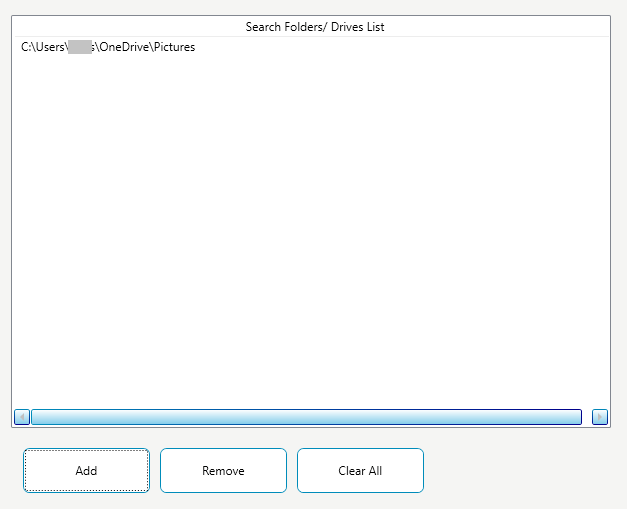
2. Click on the Add button.
3. Select the folders or drives that contain your duplicate photos.
- C:\Users\<Your_User_Name>\Pictures
- C:\Users\<Your_User_Name>\OneDrive\Pictures
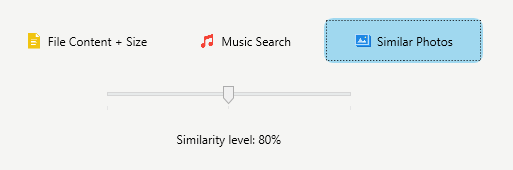
4. Set the Scan Mode to Similar Photos mode.
5. Choose your desired Similarity Threshold. (Move the “Similarity Level” slider to the left or right to adjust)
6. Click on Start Search.
7. Once the scan concludes, click on Review & Fix.
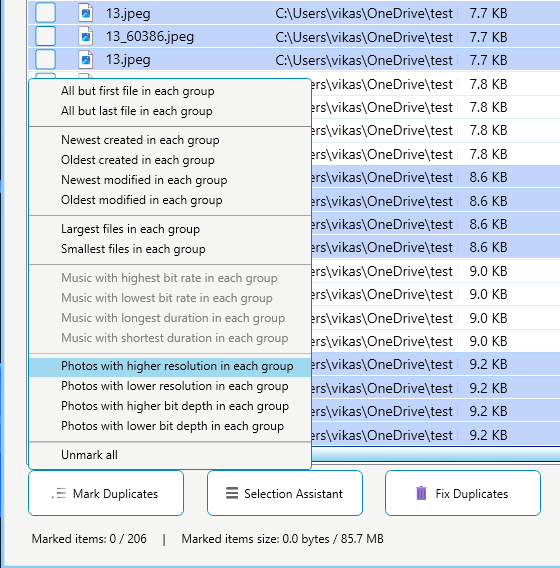
8. Use the Mark Duplicates button to automatically mark duplicate pictures in a pattern of your choice. Alternatively, you can manually mark or un-mark images manually.
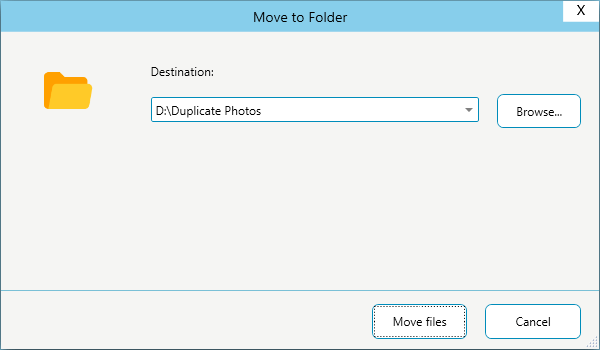
9. Click on Fix Duplicates, and choose one of the following options:
- Move to Folder
- Rename Files
- Replace with Shortcut
- Move to Recycle Bin
- Delete Permanently
Other Ways to Find Duplicate Photos
There are other ways too if you don’t wish to use a specialized software.
1. The File Explorer Method
This method involves sorting photos in the ascending manner, and observing file name patterns to identify potential duplicates. It has its own pros and cons.
1. Open File Explorer.
2. Click on the Pictures folder on the left-side panel.
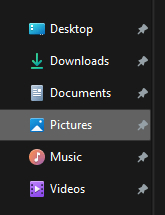
3. Right-click on an empty area.
4. Select Sort by > Name.
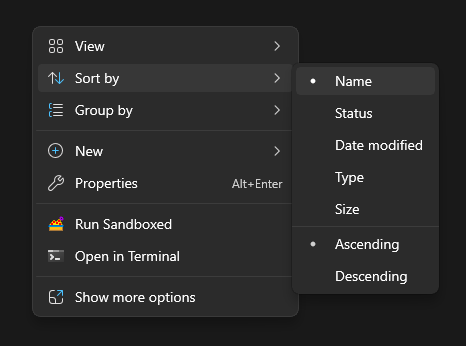
5. Your files will be sorted in ascending order.
6. Now review the files list to identify files with similar name patterns. For example, a duplicate version of “image1.jpg” may contain the file name “image1 – Copy(1).jpg”.
7. It’s highly recommended not to directly delete potential duplicate files. Move them to a separate folder so that you can restore any falsely flagged duplicates.
Where Do I Get Duplicate Photos From?
Duplicates are accumulated through various ways — including through our regular activities. Knowing the exact source of duplication can help you tackle them in the future.
1. Importing Photos from Other Devices
These days, almost everyone has a smartphone. We all take photos from our phone and then transfer them to our PC. You may acquire a lot of duplicates while transferring photos from your smartphone or digital camera.
2. Downloading the Same Photos Multiple Times
We often download the same files over and again, and then forget to delete the identical copies. Over the years, we acquire a lot of duplicates.
3. Creating Multiple Edited Versions of the Same Photo
You may also acquire duplicates when you rotate, flip or minor edit a photo and then save it as another copy. This category of duplicates is called Similar Photos, which may not be 100% identical.
4. Converting Photos into Different Formats
When we convert an image to another format, the file conversion tool creates a new copy. Because each image format is unique in nature, both images may vary in terms of size, picture details, and quality.
5. Storing Photo Copies Inside ZIP Archives
When you compress your photos, your program creates a Zip or similar file with your photos. As the original files remain intact, it results into duplication.
Benefits of Using a Duplicate Photo Finder Software
Here are the main benefits of using a duplicate image finder tool:
1. Find Exact-matching Photos
Exact-matching photos are also called pixel-perfect duplicates. Duplicate image finder software lets you find 100% matching photos, allowing you to free-up storage and get rid of digital junk.
2. Find Similar-looking Images
Use the Similarity Threshold slider to determine the level of similarity between your photos. For example, when you select the 80% similarity level, photos with a minimum of 80% similarity are detected as duplicates.
3. Easier Photo Backups
Duplicate photos can increase the size of your backups. Backing up your photos may also take longer than usual. By deleting duplicates, the photo backups will be faster, and they will take less storage than before.
4. Faster File Syncing
With fewer photos to sync, the file syncing process will become faster and bandwidth-friendly. You won’t have to wait for a long to finish syncing your photos.
5. Bulk Select with a Selection Assistant
Manually selecting each duplicate file can be a painful and time-consuming task. The Selection Assistant provides multiple patterns to mark or un-mark your files automatically with one-click.
Why Avoid Manual Methods of Duplicate Photo Finding?
If you’ve a large collection of photos, manually identifying duplicates can be a time-consuming, and error-prone task. There are multiple challenges involved:
1. Your Photos are Often Scattered Across Folders
Duplicate photos are often scattered across different folders and drives. It makes it difficult to manually find and compare them. If you have lots of data stored on your PC, it can add up to your stress.
2. Tricky & Time-consuming Process
Manually analyzing the differences between photos is a tricky and time-consuming task. This is because your photos may vary in different aspects. They may be rotated or flipped. Or they may contain minor changes, such as a missing object.
3. Complex File Name Patterns
Just because two photos share the same name, they need not be duplicates. Similarly, photos with different names can be duplicates. This is why, solely relying on the file name factor can lead to incorrect results and unexpected data losses.
4. Human Errors
Human errors are one of the major reasons behind data losses worldwide. Manually comparing hundreds of thousands of photos can lead to inaccuracies and data losses. It’s a good idea to take backups before deleting your files.
Conclusion
The manual procedure of finding duplicate photos is prone to errors. Moreover, it can be a complex and time-consuming depending on the size of your collection. On the other hand, a duplicate image finder software uses the modern technology and advanced algorithms to detect your photos, meeting your desired similarity level criteria.
Frequently Asked Questions
How are similar photos different from same photos?
Same Photos are 100% identical versions of your photos that match in every aspect — whether photo resolution, size or pixels. In contrast, Similar Photos are visually-similar copies that may differ in one aspect or another. For example, they can be minor edited, flipped or rotated versions of your original photos.
What similarity level should I set?
The Similarity Threshold slider allows you to set the depth of the duplicate photo scan. To find the maximum number of duplicates, set the Similarity Threshold slider to the lowest value (70%). To find the closest matching duplicate photos, set the highest Similarity Threshold (90%).
Which type of similar images can I find with a duplicate image finder?
Duplicate photo finder tool can help you find a range of duplicate photos. It can find duplicate photos that have been rotated or cropped. It can also find photos that have been converted from one format to another. Besides, it supports finding photos that have been resized while keeping the original aspect ratio intact.
Leave a Reply
You must be logged in to post a comment.